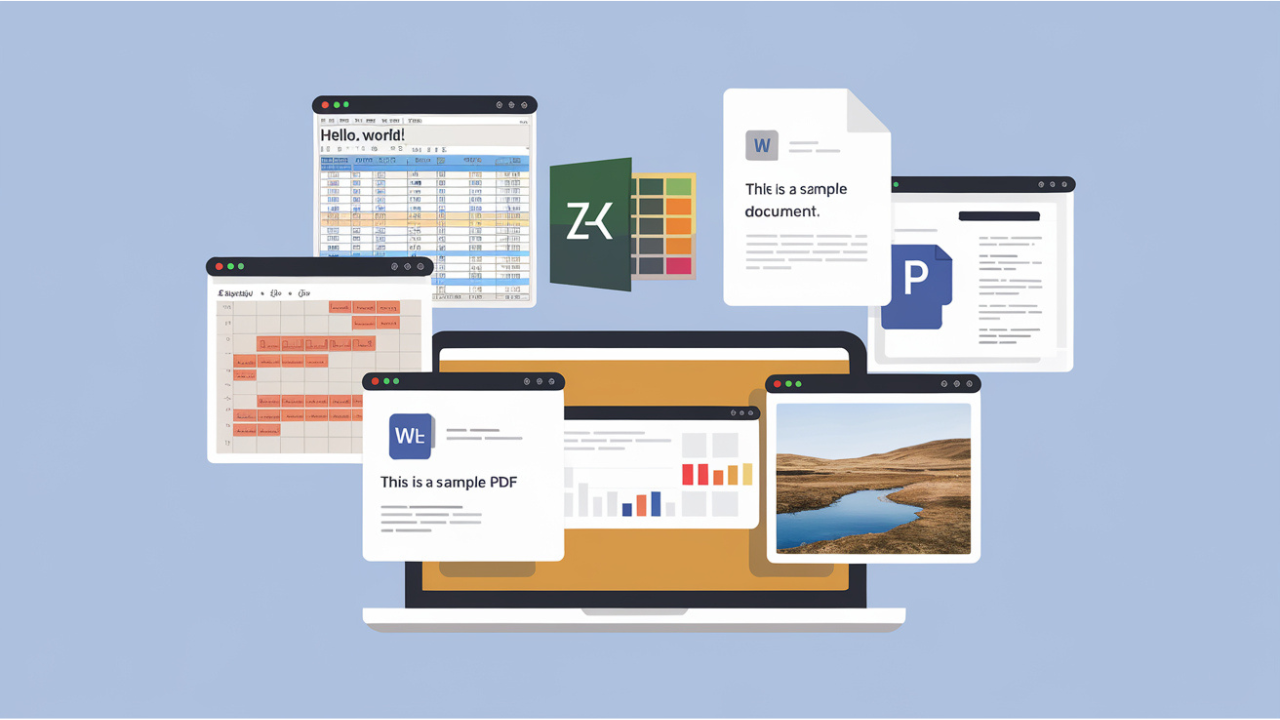
In today's digital age, file conversion is an essential skill that can save time and prevent compatibility issues. Whether you're dealing with documents, images, videos, or audio files, understanding how to convert file formats easily can help streamline your workflows. In this comprehensive guide, we will walk you through everything you need to know about file conversion, from common methods to the best tools for getting the job done.
What is File Conversion?
File conversion is the process of changing a file's format from one type to another. This is necessary when different programs or devices require specific file types to open or play content. For instance, you might need to convert a video file from MP4 to AVI, or change a JPEG image to a PNG for better quality.
Why is File Conversion Important?
Many software programs and devices are optimized for specific file formats. If a file is in the wrong format, it may not open correctly or might lose quality during the process. Proper file conversion ensures that your data remains intact and compatible with the application or platform you are using.
Common File Types and Their Uses
Understanding the different types of files and their applications will help you make the right choice when converting.
1. Document Files
- DOCX: The default format for Microsoft Word. It's widely used for text documents.
- PDF: Portable Document Format is often used for documents that need to maintain their formatting across different devices.
- TXT: A plain text format used for simple documents without formatting.
2. Image Files
- JPEG/JPG: These are compressed image formats commonly used for web images.
- PNG: This format allows for transparent backgrounds and is often used in graphic design.
- GIF: Used for simple animations or low-quality images.
3. Video Files
- MP4: A highly versatile format that is widely compatible with most devices.
- AVI: An older format that is less compressed than MP4, offering higher quality.
- MOV: Commonly used for Apple devices, it maintains high video quality.
4. Audio Files
- MP3: A compressed audio format, widely used for music and podcasts.
- WAV: A lossless format that provides higher sound quality but requires more storage space.
- FLAC: A popular format for audiophiles, offering lossless audio compression.
How to Convert Files Easily
There are several methods for converting files depending on your needs and preferences. Let’s explore the most convenient ways to handle file conversion.
1. Online File Conversion Tools
One of the simplest ways to convert files is through online converters. These platforms are browser-based and typically free to use. Some of the most reliable options include:
- Zamzar: Supports a wide variety of file formats, including documents, images, and videos.
- CloudConvert: Offers more advanced options such as selecting output resolution for videos or adjusting image quality.
- Convertio: A user-friendly tool with support for almost any file format you can think of.
How to Use Online Converters:
- Upload your file.
- Select the desired output format.
- Download the converted file.
Online converters are particularly useful for small or infrequent conversions. However, if you are dealing with larger files, you might want to consider offline tools.
2. Desktop File Conversion Software
If you're converting large files or multiple files at once, using desktop software can save time and ensure better quality.
- HandBrake: Primarily used for video conversion, HandBrake is an open-source tool that supports nearly every video format.
- Freemake Video Converter: A popular tool for converting videos to multiple formats.
- Format Factory: A versatile converter that handles audio, video, image, and document files.
How to Use Desktop Software:
- Download and install the software.
- Open the program and load the file you want to convert.
- Choose the output format and customize settings if necessary.
- Start the conversion process.
Desktop software often offers more advanced settings, such as bitrate adjustment for audio files or frame rate customization for videos, which can result in higher-quality conversions.
3. Manual File Conversion
In some cases, you can manually convert files without the need for any third-party tools. This is common with document files like TXT or RTF, where you can simply save the document in a different format through the application you're using.
For example:
- In Microsoft Word, go to "File" > "Save As" and choose the desired format (such as DOCX, PDF, or TXT).
- In Photoshop, you can export an image as a PNG, JPEG, or other formats by selecting "File" > "Export" and choosing the desired file type.
Manual conversion is quick and effective for small-scale tasks, but it lacks the flexibility and format options that online tools or desktop software provide.
Tips for Successful File Conversion
1. Understand Your Needs
Before converting a file, consider why you need to change its format. For instance, if you're converting a high-resolution image for use on a website, you might want to compress it to a JPEG format to ensure faster loading times.
2. Watch Out for Quality Loss
When converting between compressed and uncompressed formats, be aware that some quality loss is inevitable. For example, converting from WAV to MP3 will result in some loss of audio quality due to compression. Always choose the highest quality settings when possible.
3. Use Batch Conversion
If you're converting a large number of files, opt for tools that support batch conversion. This feature allows you to process multiple files at once, saving you valuable time. Most desktop software supports this functionality, and some online tools offer it as well.
4. Keep File Sizes in Check
Certain formats, especially videos and images, can become very large after conversion. Ensure that the file size aligns with your storage needs and platform capabilities. You may need to adjust resolution or compression settings to achieve an optimal balance between quality and size.
The Best Practices for File Conversion
Now that you're equipped with the right tools and methods for file conversion, it’s time to dive into best practices to ensure success.
- Backup Your Files: Always keep a copy of the original file before converting, just in case something goes wrong during the process.
- Check Compatibility: Ensure that the format you're converting to is compatible with the program or device you'll be using.
- Optimize Settings: For audio and video files, experiment with settings like bitrate, frame rate, or resolution to get the best results.
By following these guidelines, you can make file conversion a smooth and straightforward process, whether you’re dealing with documents, images, videos, or audio.



Comments (0)